TL;DR
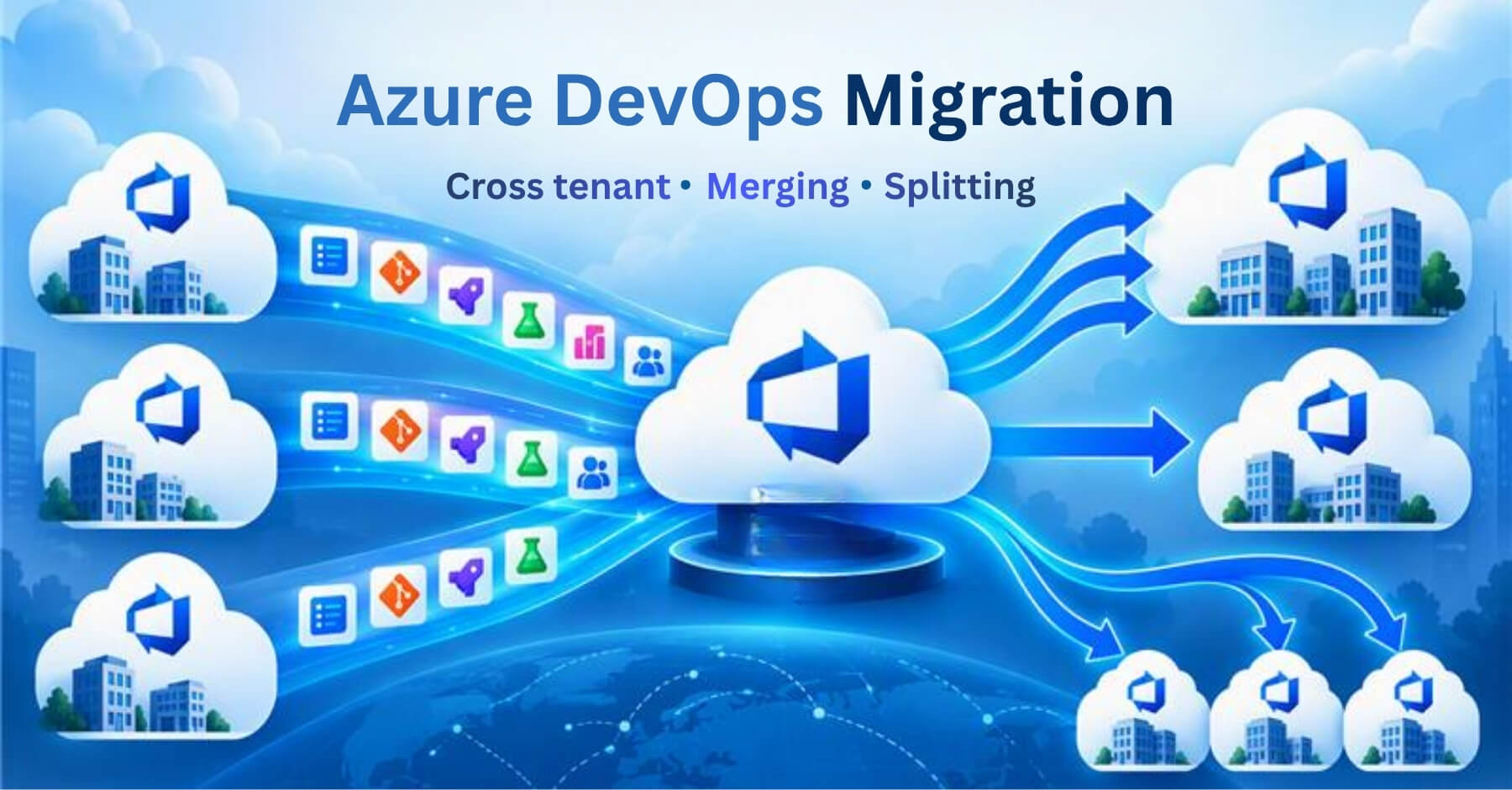
Azure DevOps migration moves projects between organizations, tenants, or projects and can include merging several sources into one target or splitting one source into several targets. It covers work items with history, comments, attachments, and links, plus test plans, pipelines, repositories, dashboards, area and iteration paths, users, teams, and groups. Options include Microsoft’s Data Migration Tool for Server-to-Services moves, a dedicated solution such as OM4ADO, or CSV export and import. The five stages are planning and scoping, mapping user identities, reconciling process templates, running a dry run with delta migration and cutover, and validating. A migration solution fits moves where history, traceability, and user identities must carry over while teams keep working.
Is it possible to migrate projects from one Azure DevOps organization to another?
Moving work from one Azure DevOps organization to another sounds like a copy job. It is not. The quick methods change work item IDs, reset dates, and drop links. A planned migration keeps the history, the relationships, and the people’s work intact.
Azure DevOps to Azure DevOps migration moves projects between two Azure DevOps Services organizations, where both the source and the target are in the cloud. If your source is still on-premises (TFS or Azure DevOps Server), that is a different path, covered in our TFS to Azure DevOps guide.
The migration comes in three types of move:
Project to project: One or more team projects move into another organization.
Organization to organization: All projects of an organization move into a different organization.
Tenant to tenant: The target organization sits in a different Microsoft Entra ID tenant, so sign-in and user identities change along with the data.
Any of these moves can also be a merge (several sources into one target) or a split (one source into several targets). Merges and splits have their own guides: How to merge Azure DevOps instances and How to split an Azure DevOps instance.
Why do teams move between Azure DevOps organizations?
A change in the business usually triggers the move:
- Acquisition or consolidation: Two companies or business units want one shared home. This leads to a merge.
- Divestiture or carve-out: A unit is sold or spun off and needs its own organization. This leads to a split.
- Tenant change: A rebrand or IT consolidation moves the company to a different Microsoft Entra ID tenant. User identity mapping becomes the main task.
- Moving off a trial or personal organization: Work started in a personal or trial organization needs a company-owned home.
- Data residency or compliance: A rule about where data must live moves the organization.
- Internal reorganization: teams are regrouped, and the old project structure no longer fits.
What are the options for an Azure DevOps to Azure DevOps migration?
Three approaches are available. Each fits a different kind of move.
What moves in an Azure DevOps to Azure DevOps migration
Most of your working data moves across with its full history. One detail to know up front: Azure DevOps assigns new ID numbers to work items in the target and cannot reuse the original ones. A planned migration works around this by keeping each item’s original ID as a reference and preserving its real dates and authorship, so the history stays intact. The table below shows what OM4ADO migrates.
Where does OM4ADO fit?
OpsHub Migrator for Microsoft Azure DevOps (OM4ADO) is a migration solution built for Azure DevOps and listed on the Microsoft marketplace. You set up the migration in a graphical interface, without writing code. It supports:
- Selective project migration: Move only the projects you pick. If just 3 of your 40 projects need to go, move those 3 and leave the rest.
- Full history and links preserved: Work items, test plans, pipelines, repositories, dashboards, queries, and area and iteration paths all come across with their complete history and their links intact.
- User identity mapping across tenants: Match each source user to the right person in the target, even when the two sides sit in different Microsoft Entra ID tenants.
- Delta migration that keeps the source live: Keep working in the source while the migration runs. OM4ADO keeps syncing new changes until you are ready to switch over.
- Automatic failure retry and re-run from the last checkpoint: If something fails, the migration retries and carries on from the last checkpoint instead of running the whole thing again.
- No volume limit: Move as much as you need, with no cap on the number of items.
OM4ADO is purpose-built for Azure DevOps and listed on the Microsoft marketplace, and OpsHub has spent over two decades moving engineering data between systems without losing history or traceability.
How to plan and run the migration?
A migration runs in five stages.
- Plan and scope. List what you have and decide what moves. Old, closed projects are often better archived. You can migrate into a target that already has data. If you move only a subset, include the items it links to, so parent and child links are not orphaned.
- Map user identities. Inside one shared tenant, mapping is mostly automatic. Across tenants or domains, map identities explicitly so history and assignments land on the right people. Map only the identities you need and resolve any “unknown” identity before the real run.
- Reconcile process templates. The “Change process” option in Azure DevOps works only between processes that share a base model. Decide early whether the target keeps the source process or uses a different one, then map work item types, fields, and states during the migration.
- Dry run, delta migration, and cutover. Run the dry run into a test target first. For the real run, delta migration carries only what changed since the last pass. Freeze the source as read-only at the end, run one final delta, and cut over. Then recreate service connections and secrets, and point build agents at the new organization.
- Validate. Compare work item counts by type, repositories, and pipeline definitions. Spot-check history, dates, and links on a sample. Confirm that dashboards render and permissions match.
For a worked example, watch the Azure DevOps cloud-to-cloud migration video.
What changes for a merge or a split of instances?
Merge: two sources can carry the same work item IDs, area paths, or team names, and these collide in the shared target. Decide up front whether incoming teams become separate projects or separate teams in one project. Build and release history does not combine cleanly. See the merge guide.
Split: move only the chosen parts without orphaning the links between them. For example, moving only active work items can leave their completed parents behind. See the split guide.
What are the most common Azure DevOps migration risks?
- History is out of order: The run stops when a work item’s revision dates are not in sequence. Use a solution that writes history in its original order.
- Permission gaps: “Not authorized” errors appear partway through when the migration account lacks access. Use an account with full access to both source and target and check scopes first.
- Process template mismatch: Field and work item type errors appear when the source and target templates differ. Reconcile work item types, fields, and states before migrating.
- Broken link tracking: Parent, child, and related links do not resolve in the target when link tracking is set up incorrectly. Configure link tracking correctly or use a solution that manages it.
- Notification flood: The migration can email the whole organization with system notifications. Control notification settings during the migration window.
- ID or name collisions (merge): Two sources can use the same IDs, area paths, or team names, and they collide in the shared target. Plan the target structure before you move.
- Orphaned links (split): Items lose the parents or children that stayed behind in the source. Include linked items in the scope.
How do you recover from a partial failure?
A migration should retry the failed items and resume from where it stopped, without deleting what is already in the target. This way, a partial run is recoverable and not a loss.
Conclusion
The data is an easy part. What decides the outcome is whether history, relationships, and people’s work arrive intact, and whether teams keep working during the move. Settle the target structure, map identities, reconcile process templates, prove the plan with a dry run, and validate against the source before cutover.
This page is part of our wider guide, How to migrate across the Azure DevOps ecosystem.
Planning a move between Azure DevOps organizations or tenants? Talk it through with a migration engineer. Book a slot
Frequently asked questions