











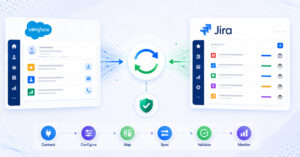
The business analyst in IBM Rational DOORS starts by creating a requirement of type Heading, under the requirement as a title under Description with a Rich Text field. DOORS will automatically synchronize rich text formatting (RTF) like bullet points, bold, underline, italics, subscript, superscript, and others. The business analyst here also adds an Excel sheet under the section Object Text. Once saved, all details, including the description in RTF and the Excel sheet, will automatically synchronize to Jira.
Navigating to Jira, we can see the requirement has synchronized as a task along with all its details. The description with the rich text formatting and the associated excel sheet have saved. The excel is also available as an attachment. Here in Jira, we can view the remote link and remote ID of the DOORS requirement. The engineer in Jira now changes the status of the task to In Progress and adds a comment for the business analyst in DOORS. Both the status change and the comment will bidirectionally synchronize to DOORS.
Back in DOORS, we can see the status has synced and therefore reflects “In Progress”. Under the Discussion section, we can see the comment added in Jira is also visible. Continuing in DOORS, the business analyst inserts a picture object in a new requirement of type Heading, accesses Title and Description under it, and saves it. Once the picture requirement is saved, the business analyst creates a new requirement of type Feature, associating it with the first requirement of type Heading as a child. Let’s see if this parent-child relation created in DOORS is synced and preserved in Jira.
Back in Jira, we can see the requirement of type Feature has synced as a subtask. We can see the subtask is associated with the task. By navigating to the task, we can find the parent-child relationship preserved here, which was created in DOORS. The image that was added in DOORS has also synchronized. We can find the image as an attachment and also in the description field in Jira.
The engineer in Jira now changes the status of the task and the subtask to “Done”, marking the completion of the work. Both the status changes made in Jira will, in near real-time, sync back to DOORS. In DOORS, first navigating to the parent requirement, we can see the status has synced from Jira and therefore reflects “Done”. Now navigating to the subtask, here too, we can see that the status has synchronized successfully and therefore reflects “Done”.
That completes the demo. Thank you for watching.